How to Add People to Your Ring Camera
Authorized Ring user sharing and permissions. Practical US-English guide with sourced details and clear limitations.
How to Add People to Your Ring Camera
Information checked: November 1, 2026
To give another person access to a Ring camera, invite them through the Ring app's User Permissions feature instead of handing over the owner account password. Ring's current instructions allow a location owner to choose the person, locations, selected devices and a permission level. The recipient uses their own Ring account to accept the invitation. Menu wording can change with app updates, so follow the controls displayed by your version.
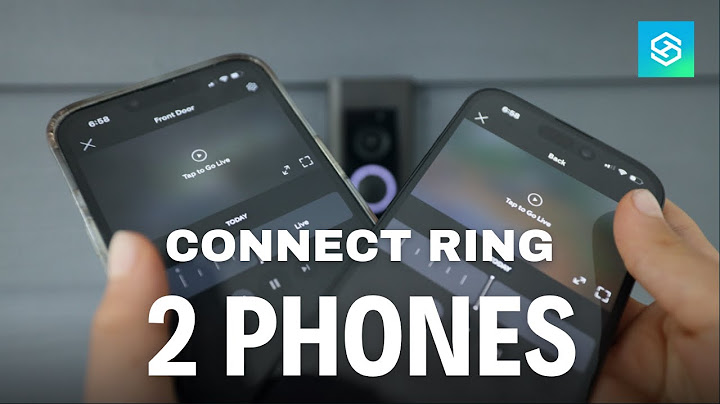
Invite a family member or trusted person
Open the Ring app and sign in as the location owner. Go to Settings or Control Center, then User Permissions and Invite User. Choose the appropriate recipient type, enter the person's name and email address, select the location and individual cameras to share, choose a supported permission level and review the invite before sending it. Ring describes Standard, Limited and Advanced levels in its current documentation; availability and detailed powers depend on the selected role.
Why device and location selection matters
Ring's support guidance says access can be granted on a per-device basis. Someone invited to a front-door camera should not automatically see every camera in the home unless you intentionally grant that coverage. If a new user cannot see a device, check the selected location and the cameras named in the invitation. A different Ring account or expired invite can also explain the problem. Resist the temptation to solve it by sharing the owner's password.
Accepting and troubleshooting an invite
The invited person should open the invitation in their email, authenticate to their own Ring account and complete any in-app acceptance steps. If the invitation does not appear, check spelling, spam folders and whether the correct account is signed in. For a stale invitation, Ring provides steps to cancel the pending invite and send a fresh one. Allow for some sync time after acceptance, then confirm that only the intended devices are visible.
Change or remove access later
Return to User Permissions, select the person and location, and adjust the role or remove the person as appropriate. Review the exact permissions before granting elevated access. For a temporary house sitter or former occupant, removing access is safer than leaving a broad invitation active indefinitely. Check whether shared video links or recordings outside the app also need separate attention.
Sharing checklist
Invite through User Permissions, never by sharing the main login.
Select the correct location and only necessary cameras.
Review role powers and confirm the recipient accepts.
Remove access as soon as it is no longer needed.
Frequently asked questions
Can I add more than one person to Ring cameras?
Ring supports sharing with multiple appropriate users; available roles and limits should be confirmed in the current app.
Why can't my shared user see a camera?
The device may not have been selected, the invite may be pending or the recipient may be in the wrong Ring account or location.
Can shared users invite others?
Permissions vary by assigned role. Use the official role description instead of assuming every invited user has owner powers.
Related reading
For a focused follow-up, see Ring Camera Security; Ring Home Security System Explained.