Google Veo 3: Models, Features, and 2026 Changes
Understand what Google Veo 3 offered, which Gemini API video endpoints were discontinued in 2026, and where to verify current options.
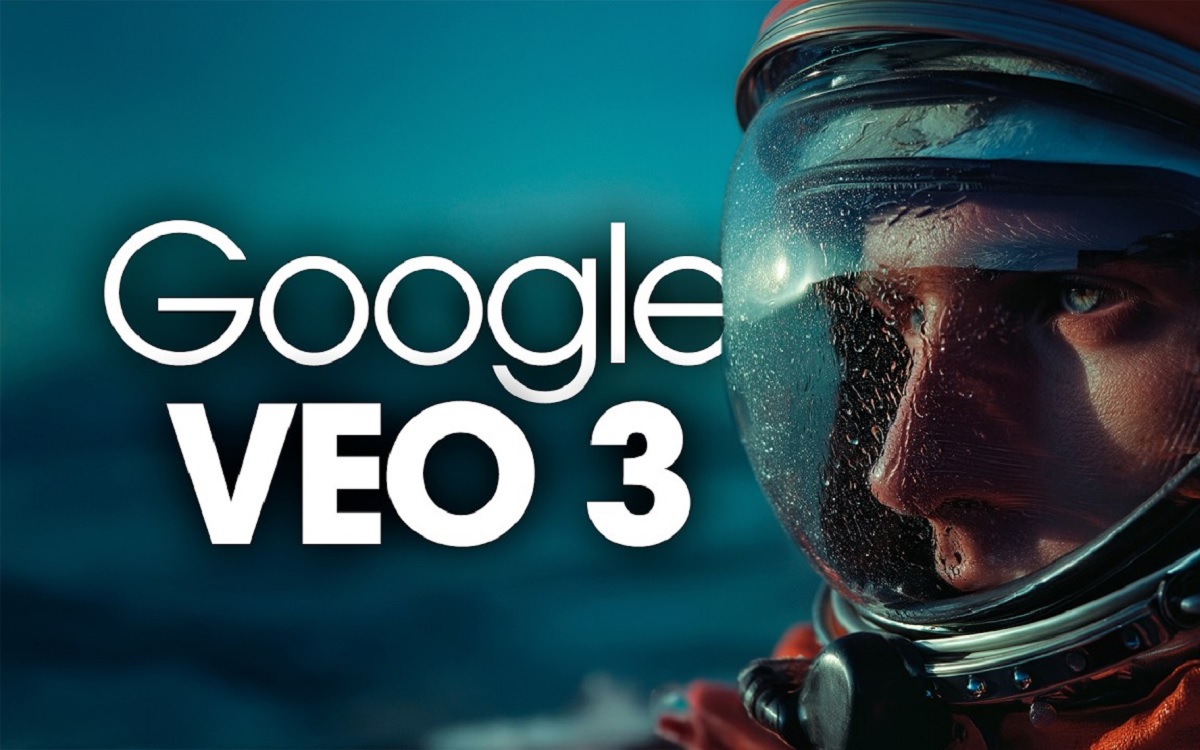
Google Veo 3: Models, Features, and 2026 Changes
Google Veo 3 is a video-generation model family rather than the name of a universal 'free video' button. Search results can be confusing in late 2026 because model names, Google Flow features and Gemini API endpoints have different lifecycles. This guide explains what Veo generated, what was retired, and how to plan a usable shot without following stale API instructions.
What is Google Veo 3?
Veo 3 was built to generate short video scenes from descriptions and, in supported variants, image references. A well-specified prompt names the subject, its action, environment, lighting and shot style. Native audio was a major feature of Veo 3-era generation, but availability and controls depend on the model and interface used. It is not a substitute for verifying a real product demonstration or recorded event. Think of it as a way to prototype cinematic moments: a cyclist passing a quiet storefront or a paper lantern drifting over a lake. Keep claims, exact typography and final branding under human control.
Veo 3 vs Veo 3.1: features and lifecycle
Veo 3 and Veo 3.1 refer to generations and variants within Google's model ecosystem. A model's public feature list can describe what it did while its particular endpoint is no longer callable. Distinguish the model family from the screen where you create a clip: an interface such as Google Flow may offer a video tool independently from a retired Gemini API preview identifier. Do not confuse the shutdown of a developer endpoint with proof that every consumer-facing video feature has ended. On any current product page, check the active model selector, supported inputs and the relevant output restrictions instead of trusting a saved screenshot.
Which Gemini API Veo endpoints shut down in 2026?
Google's published deprecation schedule lists the Gemini API `veo-3.0-generate-001` and `veo-3.0-fast-generate-001` endpoints as shut down on June 30, 2026. The `veo-3.1-generate-preview`, `veo-3.1-fast-generate-preview` and `veo-3.1-lite-generate-preview` endpoints shut down on October 22, 2026. Google's replacement guidance points developers toward Gemini Omni Flash or supported generally available enterprise models, depending on the application. These dates apply to named Gemini API endpoints. This article intentionally does not provide a copy-and-paste call to an endpoint that has already closed.
How a text-to-video request differs from image-to-video
Text-to-video asks the model to invent both appearance and movement. Image-to-video gives a still frame to anchor appearance and asks the model to add motion. Choose image input when a particular character costume, product shape or opening composition must stay recognizable. A text description alone may change small visual details between attempts. For an image, write motion instructions such as 'a gentle breeze moves the leaves while the camera slowly pushes in,' not a long restatement of every visible pixel. In either route, expect some artifacts and inspect the complete output before treating it as usable footage.
Design a short shot with a subject, action and camera
Try: 'Wide shot of a small yellow bicycle leaning against a brick wall at sunrise; a breeze moves the leaves; slow lateral camera move; natural colors; no people or text.' That request has one setting, one main action and one camera behavior. If the bicycle transforms, simplify: use a locked camera and reduce object movement. If shadows change abruptly, specify consistent overcast illumination. Generate only a short draft initially and keep the successful prompt beside its output. A usable shot is one you can trim and edit into a story; it need not be the most elaborate generation possible.
When Google Flow is the more useful interface
Flow is the project-oriented creative interface for assembling or iterating video scenes. If the question is where to start a project, add an ingredient, choose a clip's aspect ratio or organize scene variants, follow a Flow workflow. If the question is why a Veo model ID stopped working or whether a historical capability belonged to Veo 3 or 3.1, stay with this model explainer. Separating the two prevents a tutorial from presenting a retired developer method as a current click-by-click option. A short shot plan can be moved from one interface to another when tools change.
Limitations, access requirements and FAQ
Available regions, subscriptions, credits and model menus can change; check your account and the current Google help text rather than assuming a single global plan. Generated motion may have continuity problems, inaccurate logos or implausible object behavior. Avoid fabricating real endorsements or treating synthetic faces as authenticated footage. For commercial projects, inspect the current terms for the exact interface and any external images or audio you include. Verify export quality in the downloaded file, not in a small preview. A responsible tutorial should be clear about what was possible historically and what can be confirmed today.
A practical example to adapt
Shot template: 'Subject: handmade ceramic vase. Setting: wooden windowsill on a cloudy morning. Motion: curtain shifts slightly; vase remains completely still. Camera: fixed medium shot. Style: natural documentary light. Exclusions: no words, labels or people.' If the object changes shape, use a genuine product photo as the anchor when your chosen interface allows it.
Frequently asked questions
Did all Google AI video creation end in October 2026?
No. The October 22 shutdown concerned named Gemini API Veo 3.1 Preview endpoints, not every Google video tool.
What replaced the retired Veo API previews?
Google directs Gemini API developers to Gemini Omni Flash and notes other GA enterprise choices.
Is Veo the same thing as Google Flow?
No. Veo names a model family; Flow is a creative interface that can expose video-generation workflows.
Related guides
first Google Flow video project
turning a photo into an AI video