How to Choose Free Video Editing Software
Compare free video editors by watermark rules, formats, timeline tools, captions, export options, and the needs of AI-generated clips.
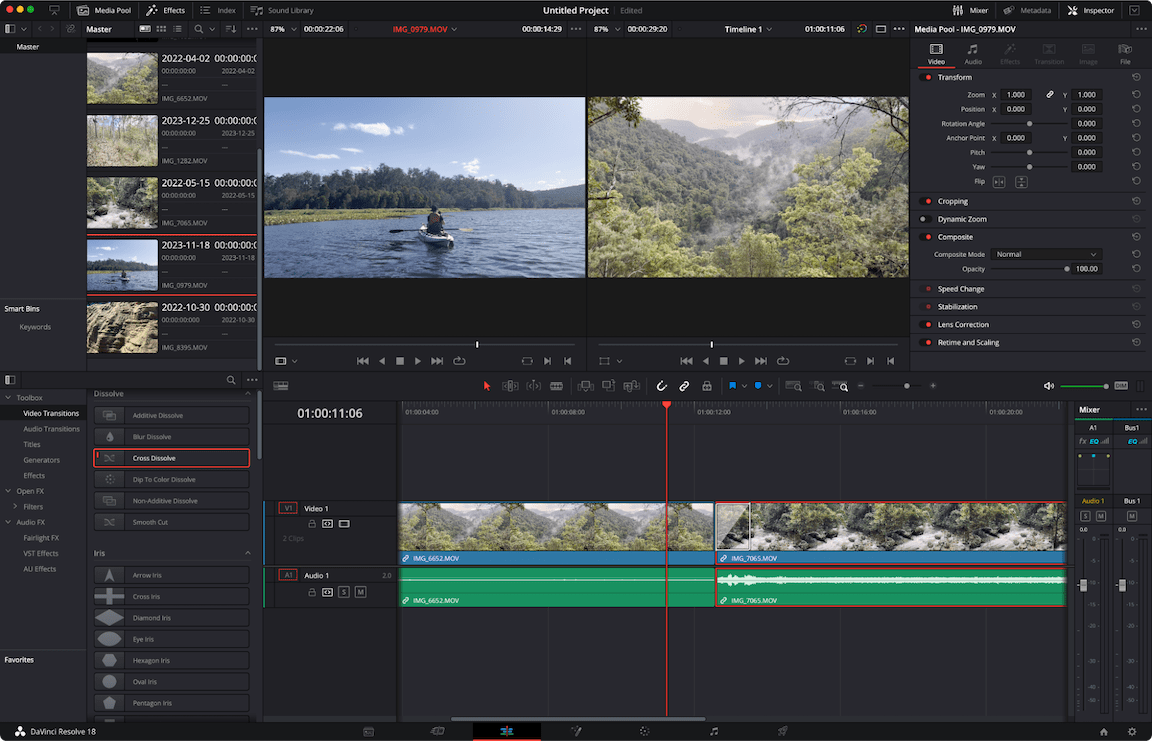
How to Choose Free Video Editing Software
The best free video editing software is the one that completes your actual project without hiding a needed export option behind an upgrade. A fast, watermark-free trim may matter more than a hundred visual effects. Instead of inventing a ranking from software names, this guide gives a repeatable comparison that you can use with the current free tiers of desktop and browser editors.
Start with the footage and export format you need
Define the job before choosing software. List your source files—AI-generated MP4 clips, recorded footage, narration, captions and licensed music—and the final destination. A 20-second vertical social edit needs clean trimming, titles and audio balance; a 30-minute interview benefits from a stable timeline and reliable subtitle workflow. Check the operating system and whether your computer can handle the source resolution. If you only need a cut and one text overlay, a lightweight editor may be more practical than a complex professional suite. The 'best' choice changes with the project, not only the software's feature count.
Compare watermarks, free limits and licensing
A free plan can have export watermarks, file-size limits, number-of-project limits or reduced resolution. Some restrictions appear only at the export step, after you've invested time editing. Before building a large project, create a short test with imported video, one caption and a music clip, then export it using the free account. Inspect the downloaded file for a watermark and the actual dimensions. Check commercial-use terms separately from free access; 'free to edit' does not always imply that included music, stock or templates are cleared for a business advertisement. Record the exact date of your checks.
Check timeline, captions and audio tools
Evaluate whether you can trim precisely, rearrange several video and audio tracks, control narration volume and create captions that remain readable on a phone. Keyframes are valuable when a picture or title must move deliberately, but they are unnecessary for a simple cut-only job. Test whether the editor can use your footage without reencoding it into visibly poorer quality. If you need subtitles, try editing one proper name and see whether the corrected text persists in the export. A tool should be judged on whether these routine tasks are straightforward, not on the size of its effect library.
Confirm vertical and landscape export support
Import a vertical and a landscape test clip. Verify that the editor can create both 9:16 and 16:9 canvases and that cropping does not cut off faces or critical instructions. Export each and inspect the file's width, height, audio and playback behavior in an ordinary media player. If you expect to publish across several platforms, save a clean master and create separate crops rather than stretching one file. The interface might advertise high-quality output while the free plan restricts dimensions or frame rate. Trust the exported result and current plan terms over promotional labels.
Understand browser editors versus installed desktop tools
Installed desktop tools keep more project work local and may be preferable for large files or privacy-sensitive editing, though some use online services for specific features. Browser editors are convenient on shared computers but require uploading footage to a provider; that may be inappropriate for confidential client recordings. Compare internet needs, upload limits, autosave reliability and the ability to reopen projects later. For a creator who edits mostly on a phone, the relevant comparison is a mobile app rather than an advanced desktop timeline. Distinguish these workflows before making any recommendation.
A reproducible test for choosing an editor
Make one identical 20-second test in every candidate editor. Import three short clips, trim one second from each, add a two-line title, mix a narrated sentence with licensed background music, produce a captioned vertical version and export. Record setup time, mistakes, final dimensions, watermark, project recovery and whether any paid feature was required. Do not pretend this guide has tested specific brands unless you actually run the test and publish the results. A transparent checklist is more durable than a ranked list based only on feature pages.
When a paid upgrade is worth considering
Consider paying when a repeated limitation costs meaningful time: unwanted watermarks, unavailable export resolution, insufficient tracks, missing team collaboration or an unreliable caption process. First confirm that the paid tier solves your actual bottleneck. Some creators need better source footage or cleaner narration, not a subscription. Save one tested free workflow as your baseline and revisit it when the provider changes plans. If your work is mostly browser-only or iPhone-based, follow the dedicated workflow guides for the steps after choosing an editor.
A practical example to adapt
Editor comparison card to copy: Candidate; operating system; test date; source MP4 import; 9:16 export; caption editing; separate audio track; free-export watermark; output dimensions; commercial asset terms; project recovery. Record PASS, FAIL or NEEDS CHECK for each. Only rank editors after completing the same test on each one.
Frequently asked questions
What should I check first in a free video editor?
Export limits, watermarks, supported footage and the small set of editing tools your project needs.
Are browser editors always worse than desktop editors?
No. Browser tools are convenient for lightweight projects, while desktop apps may suit heavier or privacy-sensitive work.
Can a free editor include paid-only assets?
Yes. Inspect which music, effects, templates and export features are included in the current free plan.
Related guides
editing a video online for free
editing an AI video montage on iPhone