How to Create a Video With Invideo AI
Learn to brief an Invideo AI project, review the generated scene order, ask for changes, and export a short video for your audience.
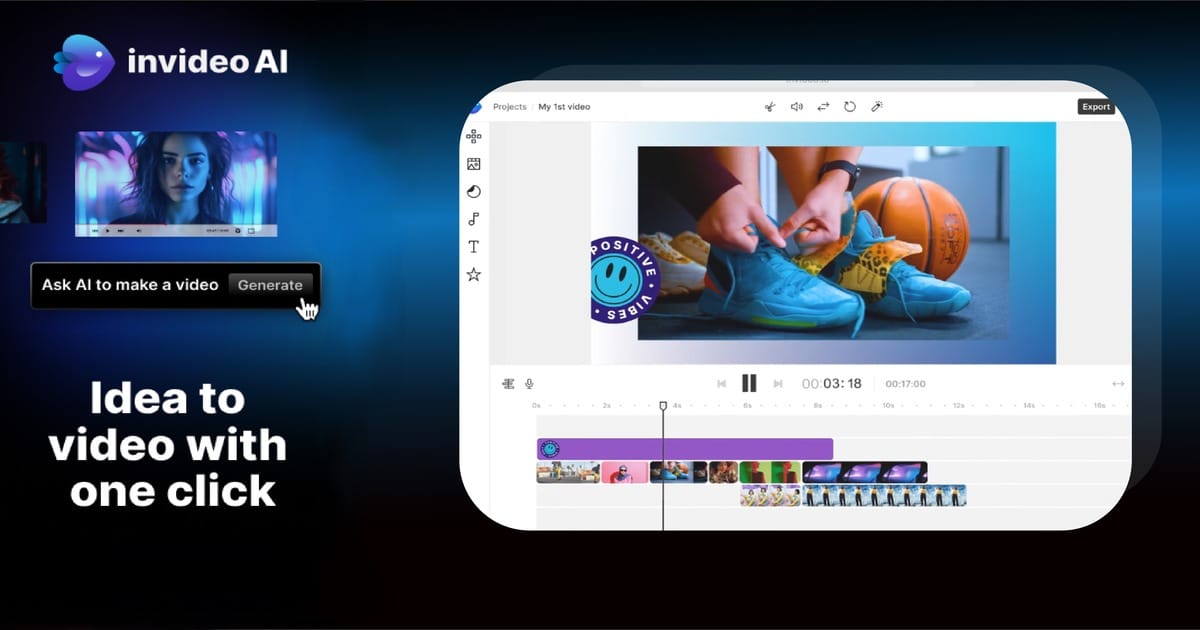
How to Create a Video With Invideo AI
Invideo AI is built around a back-and-forth video creation process: describe what you want, review the plan and refine the result. That can help with a multi-scene project, but the tool still needs a good brief and careful editorial review. This walkthrough covers one realistic first project rather than claiming that any one prompt automatically produces a flawless, publication-ready film.
What Invideo AI does in an agent workflow
Invideo describes an AI-assisted filmmaking workflow that can help with writing, storyboarding, generating and editing a series of shots. Its current tools also include agent-oriented editing features, so the exact route can differ by account and interface. The important idea is a conversational creative loop, not a rigid template. Choose a format that allows meaningful review: a short local-event teaser, a brief business explainer or a simple travel mood piece made from licensed assets. Keep the purpose narrow; a request to 'make a whole documentary' is hard to evaluate without an outline and verified research.
Write a brief with topic, audience, format and tone
Prepare four things: a one-sentence topic, the intended audience, a target runtime and a restrained tone. For example, 'Create a 30-second vertical introduction to a community book swap, aimed at nearby residents, friendly tone, no invented event details.' Give the tool verified facts only: dates and locations if confirmed, or placeholders if not. Indicate whether to use your uploaded photos or generated imagery. Specify any text that must remain word-for-word accurate. Set boundaries for music, narrator style and claims. A specific brief reduces irrelevant filler footage and simplifies approval later.
Ask to review the outline before rendering
Before rendering a full cut, ask to see or summarize the proposed narrative beats if your current workspace supports planning reviews. Verify that the first scene establishes context, the middle explains one useful detail and the ending has a meaningful next step. If the outline repeats the title three times, rewrite it now. Mark any shot that needs authentic photography, such as a real venue entrance, instead of accepting an AI reconstruction. Your script and storyboard should be easy to understand with no visuals at all; that makes the later generated result easier to judge objectively.
Check footage, captions and narration for accuracy
Read captions and narration against the approved script. Look for generic stock shots that imply a location, person or event not actually shown. Examine transitions for abrupt changes in color or apparent season. If the edit includes a generated voice, check proper names and any dates carefully. Make the visual evidence match the words: footage of an unrelated library should not be presented as the actual book swap location. If a line cannot be supported by an approved asset or source, remove it. A polished timeline is not a substitute for accurate representation.
Iterate one change at a time
Change one thing at a time. 'Replace the second scene with our uploaded image of the event space and leave the narration unchanged' is easier to evaluate than 'redo the whole film.' Ask for a faster opening only if the problem is slow pacing. If background music competes with the narrator, request lower music under speech, not a completely different visual style. Version the cuts so an earlier approved result remains recoverable. The more changes you make at once, the harder it becomes to identify which one created a new inconsistency.
Export the final video and document your changes
Choose a final framing and caption style suited to the destination, then download a file and inspect it outside the app. Check for missing frames at the beginning and end, clipped captions, sudden audio jumps and unexpected watermarks. Keep source footage and generated clips organized with permission records. If you are producing a client deliverable, record which version was approved and by whom. Tool features and export tiers can change, so confirm the current offer shown in your account instead of relying on a pricing table captured months earlier.
Limitations, rights and common questions
An AI agent cannot decide if you have the legal right to use a song, whether a location appears authentically, or whether a claim is true. Those remain editorial responsibilities. If your prompt requests synthetic people, avoid implying that they are real interview subjects. When a scene fails, give more precise camera and motion language or use legitimate recorded footage. For a general project brief, follow the script-writing guide; for an ecommerce product ad with a URL-first approach, the Creatify guide addresses a different workflow. Keep tool-specific instructions separate from the story itself.
A practical example to adapt
Starter prompt: 'Build a 25-second vertical teaser for a neighborhood book swap. Audience: people within the local community. Scenes: books arriving, hands sorting titles, a closing invitation. Use only the event facts I provide. Ask me to confirm the outline before adding any specific date or venue. Keep the final frame blank for a verified call to action.'
Frequently asked questions
Is Invideo only a template editor?
Its published AI filmmaking guidance describes an agent-assisted, iterative creation workflow in addition to editing capabilities.
Should I approve the outline before the first render?
Whenever the interface allows it, yes. Outline review catches unsupported facts and unnecessary scenes early.
Can I make a finished ad without checking the exported file?
You should still check audio, captions, footage rights and factual accuracy in the final output.
Related guides
writing an AI-friendly video script